This manual explains how to read the Low Pass panel and how to get ready for a drive. It is written like the checklists and handbooks pilots use, because the panel is drawn like a cockpit display: one color grammar, one place for every reading, and a plain word when a reading is missing.
Start with the pre-flight checklist in Section 5, or read the panel top to bottom from Section 1. Every term on the panel has a one-sentence definition in the app under Settings, Reading the instruments.
WARNING
Could put you at risk if you ignore it.
CAUTION
Could mislead you if you ignore it.
NOTE
Useful to know.
SECTION 1
The panel
Where each instrument sits, what the colors mean, and what a dash means.
1.1 Panel layout
The portrait panel, drawn to the app's proportions. The alert row appears only when there is an alert.
Hold the phone upright and the panel reads top to bottom. An alert row appears at the top only when there is an alert. Below it, speed sits beside altitude, the way an airliner's primary display pairs them. Climb rate, grade and pressure share the next row. Heading, the terrain card and the sensor status line finish the panel.
Landscape splits the same pieces into two columns. A roomy iPad window adds a live map and an altitude history, and the instruments read the same way.
An instrument with nothing to show folds away after about 10 seconds and comes back after 3 seconds of readings, so the panel does not jump around. A reading that has gone missing shows --- once its short hold ends.
1.2 Colors and shapes
The app's own gauge in a sample state.
Color on the panel always means something, and it never works alone. Every caution carries a triangle and every warning an octagon, or words, so the panel reads the same without color.
GREEN
Normal. Sensors are healthy and you are moving at an ordinary rate.
WHITE
Your current reading: the number you are reading now.
CYAN
A scale: tape ticks and range marks the number is read against.
MAGENTA
A target, such as the summit of the next pass or the speed limit.
AMBER
Caution. Always paired with a triangle or a word.
RED
Warning. Always paired with an octagon or a word.
SOFT BLUE
The road line on the terrain card. It names the road and carries no status.
1.3 Dashes mean no reading
When a sensor has nothing reliable to report, the panel shows --- and keeps the label in place. Low Pass does not show a frozen number as if it were current, and it does not fill a gap with a guess.
A short gap is normal in a tunnel or a deep canyon. Section 11 explains how long each reading is held before it turns to dashes.
SECTION 2
Primary instruments
Altitude, speed, climb rate, grade, heading, pressure and the sensor dots.
2.1 Altitude
The app's own gauge in a sample state.
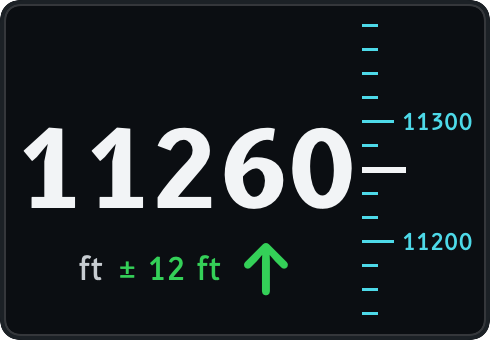
The big number is your height above sea level, read from the barometer and kept honest by GPS. The ± figure beside it is how far off it might be: a reading of ± 30 ft means your true height is likely within 30 ft of the number.
The cyan tape moves past a fixed index so you can see the climb as well as read it. An arrow beside the number shows whether you are climbing or descending. Altitudes print without a thousands separator, as avionics print them: 10031 ft.
Closing on a named pass, a magenta readout and a magenta bug mark the pass's elevation on the tape. When the pass is off the scale the bug parks half visible at the tape's edge.
2.2 Vertical speed (V/S)
The app's own gauge in a sample state.
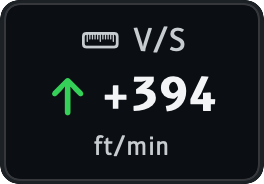
V/S is how many feet (or meters) per minute your altitude is changing. It turns amber at about 500 ft/min (2.5 m/s) and red at about 1,000 ft/min (5 m/s), and a triangle or octagon is drawn with the color.
While you are parked it shows a neutral dashed state, so a stationary car never claims to be descending 40 ft/min because the weather changed. A separate instant arrow beside the altitude shows the trend with almost no delay; the V/S number is smoothed over a few seconds.
2.3 Ground speed (GS)
The app's own gauge in a sample state.
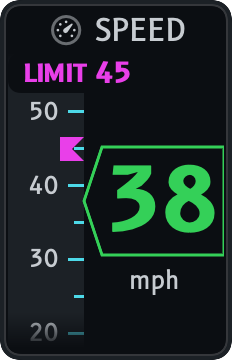
Speed is a vertical tape on the left, measured by GPS, with the number in a notched window. It needs a GPS fix; a device with no GPS draws no speed at all.
2.4 The limit bug
The app's own gauge in a sample state.
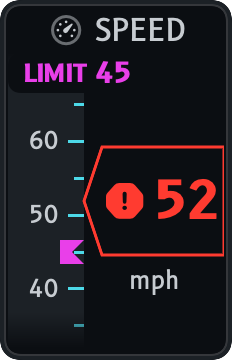
When an installed road pack has a limit for the road you are on and GPS is good, a magenta bug sits on the speed tape at that limit, with a magenta LIMIT readout at the top. If the limit is off the scale the bug parks half visible at the tape's edge.
The number is green within the limit. Once the whole number shown goes over, it turns red and an octagon appears beside it, so the state is never color alone. VoiceOver adds the words over the mapped limit.
2.5 Grade
The app's own gauge in a sample state.
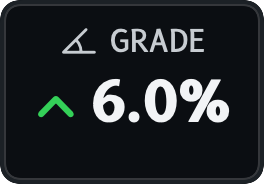
Grade is rise over run: how many feet you climb for every hundred feet you travel, shown with an arrow for up or down. It turns amber at 8% with a triangle, and red at 12% with an octagon.
Below about 5 mph the math is unreliable, so grade shows a neutral state instead of a noisy number. This is grade under the car now. The terrain card's GRADE AHEAD is a different reading: the road a kilometer ahead.
2.6 Heading (HDG)
The app's own gauge in a sample state.
Heading is a cyan tape with the number in white. In portrait it is one row, the number beside a short tape; landscape draws the full tape.
Heading comes from GPS while you move. A device with no GPS, such as a Wi-Fi-only iPad, falls back to its compass, labeled MAG or TRUE and shown at best as degraded.
2.7 Pressure
The app's own gauge in a sample state.
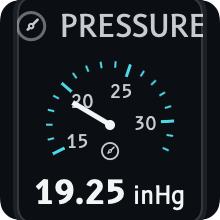
The dial shows the air pressure your phone's barometer measures, in inches of mercury (imperial) or kilopascals (metric). Pressure falls as you climb, which is how the barometer finds your altitude.
It is station pressure, the pressure where you are, not a sea-level weather figure. Detailed readings shows pressure altitude, the height the pressure alone points to, which drifts from your true altitude as the weather changes.
2.8 Sensor status (GPS and BARO)
The app's own gauge in a sample state.
Two labeled marks show how well each sensor is working, because the two fail in different ways. A filled dot is good, a triangle is degraded, and an X is unavailable.
BARO becomes GPS ONLY on a device with no barometer; altitude then comes from GPS with a wider ± band. On a device with no GPS the GPS mark becomes NO GPS. The line also carries your coordinates.
SECTION 3
Terrain ahead
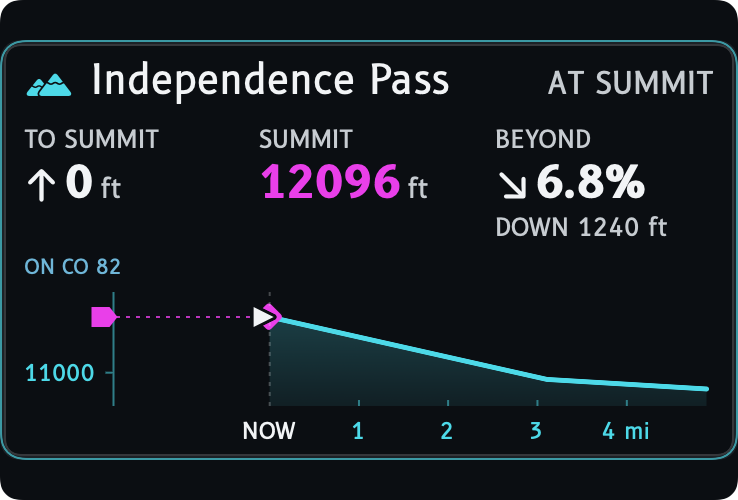
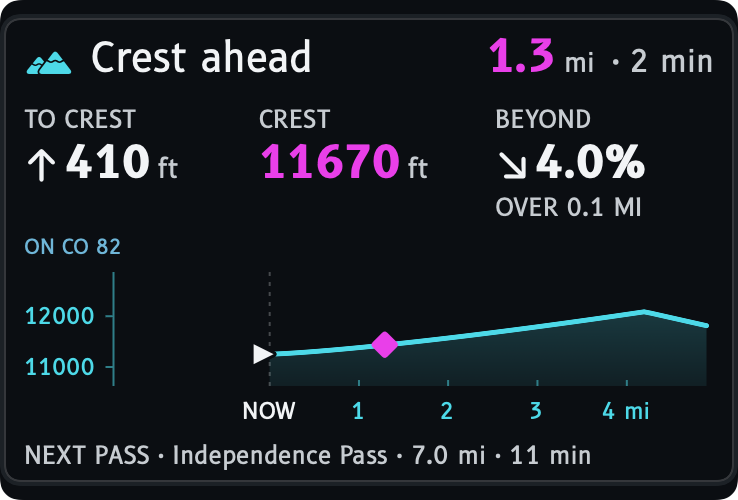
The terrain card in every state, from the approach to a pass through AT SUMMIT and BEYOND.
3.1 Reading the terrain card
The app's own gauge in a sample state.
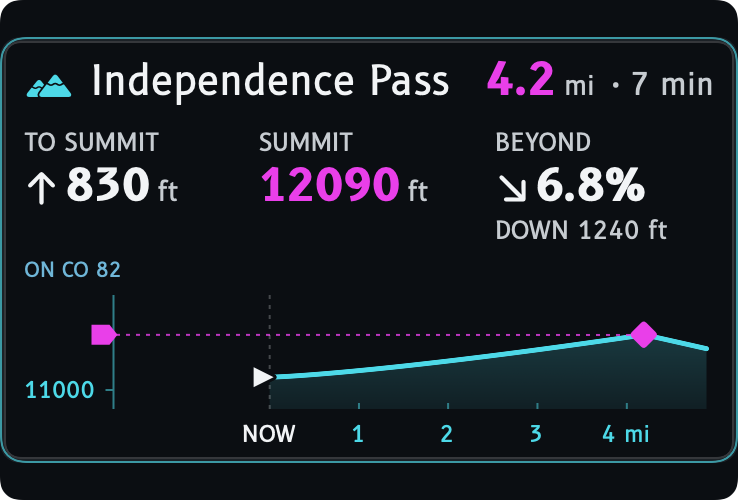
The terrain card shows what the road you are on does ahead. The header names the next named pass, with its distance in magenta and the time to reach it. Under it sit three cells, label above value, and a side view of the road: the road profile.
On the profile the cyan scales show altitude and range, the white triangle marked NOW is you, the dashed line is the road behind you, and amber or red bands mark steep stretches. When a named pass is the focus, a magenta bug and dashed line mark its summit, and the same summit shows on the altitude tape.
A cell with no data shows --- and keeps its label. The terrain detail reads only the road you are matched to, from installed regional or base road coverage. The header shows the next named pass and its distance. The cells and profile need suitable road elevation data.
3.2 TO SUMMIT, SUMMIT and UPHILL
TO SUMMIT is how much higher the road still climbs: the pass's road elevation minus the altitude on your altimeter. It never reads below zero. SUMMIT is that elevation, in magenta.
A road does not always climb in one piece. UPHILL, a line under TO SUMMIT, counts all the climbing left including dips you have to climb back out of. It appears only when it is at least about 50 ft (15 m) more than TO SUMMIT.
3.3 BEYOND
The app's own gauge in a sample state.
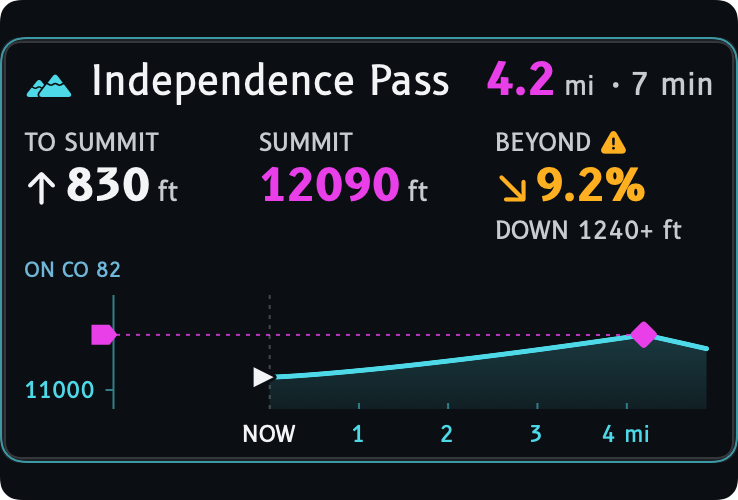
BEYOND looks over the top. It shows the steepest grade in any 200 m (about 650 ft) stretch just past the summit, colored and shaped like the grade readout: amber with a triangle at 8%, red with an octagon at 12%.
Under the number is a word. DOWN gives the drop. CLIMBS ON means the road keeps rising, LEVEL means it flattens, and ROAD ENDS means the road stops at the summit. When only the first stretch past the top is known, the word is OVER and the length it covers. A plus after a drop, such as DOWN 448+ ft, means the road was still descending where the card's view ends, so the true drop is at least that much.
3.4 AT SUMMIT
The app's own gauge in a sample state.
From 100 m (about 330 ft) before the road's high point until you are 200 m (about 650 ft) past it, the header says AT SUMMIT in place of a distance. It never counts down to 0.0 mi. CarPlay and the Live Activity say the same.
Once it starts, AT SUMMIT follows your position rather than the road match, so it holds in a summit lot where the road is not matched. Low Pass counts the pass as reached when its summit is within 25 m ahead or you come within 40 m of it. That one event is what speaks Pass reached and records the crossing for your Passport.
3.5 DESCENT: DROP LEFT, STEEPEST and AVG
Once a named pass is reached and the road below drops at least 120 m (about 400 ft), the card turns to the descent; without a pass it waits 20 seconds on a long descent. The header keeps the pass name, or DESCENT without one, with the distance to the valley floor in magenta and LEVELS OUT, ROAD ENDS or RUNOUT beside it. At the summit it still reads AT SUMMIT while the cells turn.
DROP LEFT is how much lower the road still goes, with the percent done. IN VIEW, or a plus after the number, means the map ends while the road is still descending, so the real drop is larger. STEEPEST is the steepest 200 m (about 650 ft) still ahead and how far away it starts, in the grade readout's colors and shapes. AVG is the average grade of what is left, with the hairpin count when there are any.
When a long steep stretch starts within a mile (6% or more for 1 km, or 8% or more for 400 m), STEEPEST adds the caution triangle and the profile a gray bracket over it. Consider a lower gear before it. A descent is never red just because it goes down. The magenta target on the altitude tape and the profile moves to the valley floor, and in the last 400 m or 30 m of drop (RUNOUT) the cockpit lets go.
3.6 TUNNEL and ESCAPE RAMP
On the DESCENT card, and on the climb card as you approach a pass, one line can sit under the road line: TUNNEL 0.8 MI or ESCAPE RAMP 1.2 MI, with the name after it when the map has one. If both are ahead it shows the nearer. It needs an installed road pack that carries the feature.
Only mapped features appear. A tunnel or ramp the map lacks is not shown, so no line never means there is none. An escape ramp shows only where the road descends toward it, on your side of a divided highway.
GPS drops out inside a tunnel. A barometer keeps reading altitude through it, so the altitude reading carries on. Where no fresh altitude source remains, the reading turns to dashes rather than freeze.
3.7 An unnamed crest
The app's own gauge in a sample state.
A crest is a high point in the road ahead that is not a named pass: the road rises at least about 50 ft (15 m) to it, then drops at least about 35 ft (10 m). The card reads it the way it reads a pass, with TO CREST, CREST and BEYOND, and a header that says Crest ahead.
When a crest stands in front of a farther named pass, one NEXT PASS line under the card names the pass and its distance.
3.8 AT THE SUMMIT, parked
When you have reached a named pass and stop below 4 mph, the card's body becomes the AT THE SUMMIT panel. It shows the pass seal, the elevation of the road at the top, and one line about recording. The header keeps the pass name and AT SUMMIT.
The seal is the pass's Passport stamp. It is gray until collected. A first crossing celebrated during this recording shows New stamp before the saved Passport updates; a revisit keeps its visit line, such as Visited 3 times. The stamp’s tap plays with the live celebration; opening the summit panel does not repeat it.
Crossing recorded confirms the recording captured the crossing. A new stamp can be celebrated now; the recorded journey adds its discoveries to the saved Passport when it finishes. Record to collect this stamp means no trip is running. Recording paused means the trip is paused.
The panel closes when you move above 5 mph, when a caution or warning needs the card, and never appears while CarPlay is connected. It appears on the iPhone and iPad cockpit only.
3.9 GRADE AHEAD and STEEPEST
The app's own gauge in a sample state.
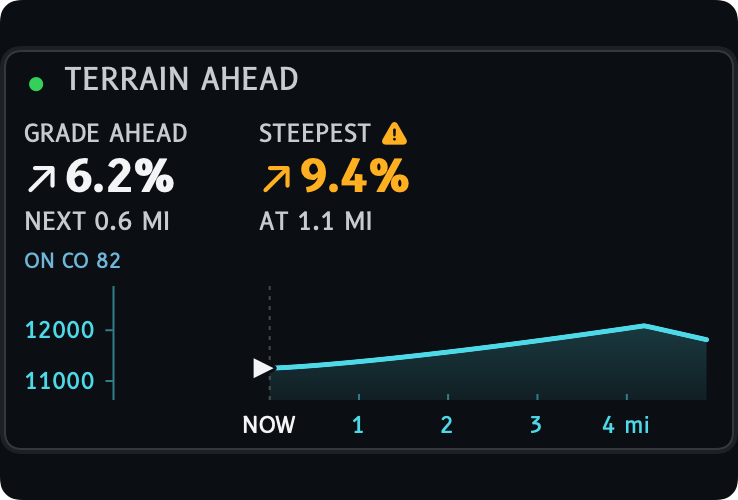
GRADE AHEAD is the average steepness of the road over the next kilometer (0.6 mi). A 6% grade rises 6 units for every 100 you travel. STEEPEST is the steepest 200 m stretch within the next 3 km (1.9 mi), with how far ahead it starts.
Both use the grade colors and shapes: amber with a triangle at 8%, red with an octagon at 12%.
3.10 The road line, DIRECT and off-map
The app's own gauge in a sample state.
A small road line in soft blue names the road the card is reading. A gravel road adds GRAVEL and a four-wheel-drive road adds 4WD.
ON CO 82
The road you are matched to, by its reference or name.
ON CR 22 · GRAVEL
An unpaved road. The suffix is 4WD on a four-wheel-drive road.
UNNAMED ROAD
A mapped road with no reference or name.
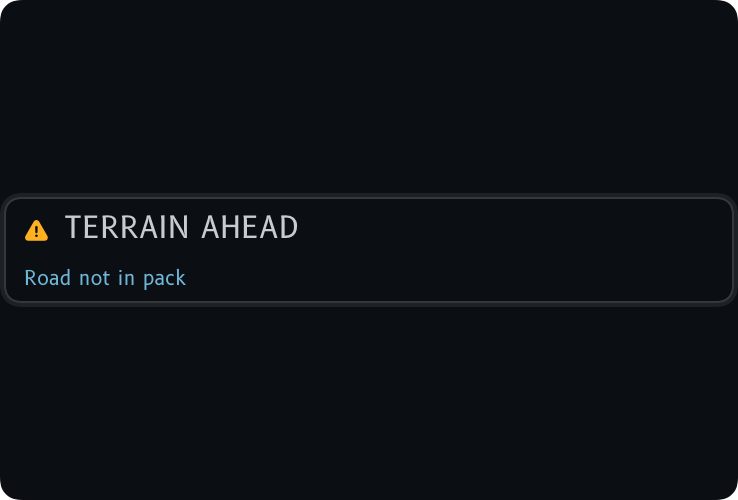
ROAD NOT IN PACK
Installed road coverage reaches where you are, but no carried road matches. Grade, crests and the profile pause until you are back on a mapped road.
DIRECT
The straight-line distance to a pass when there is no road to follow. The road may wind farther, so there is no arrival time.
3.11 Region packs and confidence
The app's own gauge in a sample state.
A region pack is a download of road and elevation data for one region. Terrain ahead reads it on your phone, so it works without a signal. Settings, Region packs lists available packs and offers updates. Base packs can also supply terrain where their roads carry elevation.
The card carries its own confidence, apart from the sensor dots. Good means a matched road with fine elevation data. Degraded means coarse elevation, no road match, no elevation, or no known travel direction. Unavailable means no pack covers where you are, and the card says so once, with an offer to download it, and does not repeat it.
3.12 Base road packs
A base road pack holds one state's main roads, from motorways to secondary roads, with speed limits and road names where the map has them. It adds speed limits and road names where no region pack reaches.
Base and regional packs work together. Regional roads take priority where both cover the same road and add finer mountain detail. Coarse elevation lowers confidence and withholds summit, crest and steepest-grade detail; a road with no elevation gives names and limits only. Missing or unmapped values stay unavailable. Pass names come from the bundled index, and stamps require a recorded crossing.
An available pack under 25 MB downloads on its own after a good location fix in its state, over cellular if needed, unless Low Data Mode is on. A larger one is offered once, to download on Wi-Fi. Base road packs are available for 49 states plus the District of Columbia, including Hawaii; Alaska is not covered. Hawaii has a base road pack; its separate mountain-region pack is not available. Settings, Region packs lists the current downloads. Download all of the US downloads the available US packs on Wi-Fi; Remove deletes an installed pack.
SECTION 4
Alerts
The master light, the three tiers, and what no alert does not mean.
4.1 The annunciator
The app's own gauge in a sample state.
Alerts follow flight-deck practice. A warning lights a red tile that says WARNING, a caution lights an amber tile that says CAUTION, and an advisory shows as amber text with an ADVISORY tag. The word on the tile is the second signal, so the tier never depends on color. The row appears only when there is something to say, and takes no space when there is not.
Tapping a light acknowledges it: the tile changes from filled to outlined. The message stays, like pressing Master Caution on a Boeing leaves the message on the display. A caution or warning also takes the cockpit out of its summit focus.
4.2 The three tiers
The app's own gauge in a sample state.
A warning is kept for conditions that call for stopping or turning around, so the red light stays rare enough to mean something. The tier table below is the one the app uses.
Chain law or traction law. Winter storm, high wind, avalanche, extreme cold, severe thunderstorm, flood and extreme heat warnings.
ADVISORY
Lane closure. Winter weather, wind and dense fog advisories.
4.3 Spoken alerts and stale data
The app's own gauge in a sample state.
Road and weather alerts are off until you turn on the master switch in Settings, Road and weather alerts. The visual alerts are not configurable. Which kinds are spoken is: every warning and caution is on by default, every advisory is off, and each kind has a play button to hear its phrasing.
Weather warnings come from the National Weather Service for the state you are in and any state within about 30 miles, anywhere in the United States. Road closures and chain law are not live yet. Where no feed covers you, the cockpit says NO ALERT SOURCE HERE. A feed that has gone stale says how old it is, as HAZARD DATA 45 MIN OLD, and never reads as all clear.
SECTION 5
Pre-flight checklist
Do these at home first, then at the car. Each row is a challenge and its response.
5.1 At home, on Wi-Fi
REGION PACK: INSTALLED FOR YOUR ROUTESettings, Terrain. Packs download over Wi-Fi by default.
ROAD AND WEATHER ALERTS: ONSettings, Road and weather alerts. The master switch starts off.
SPOKEN BRIEFINGS: SETSettings, Spoken briefings: voice, which briefings, and Briefing volume with its sample.
LOCATION: ALLOWEDLow Pass asks the first time you open the cockpit. While Using is enough.
MOTION & FITNESS: ALLOWEDThe barometer and drive detection use it.
GPS · BARO: BOTH DOTS FILLEDGive it a moment under open sky. A triangle is degraded; an X is unavailable.
AUDIO ROUTE: SPEAKER OR CARBriefings play on the route the phone is using.
LIVE INSTRUMENTS: ON, FOR LOCK SCREEN AND CARPLAY TILESeparate from recording. Turn it off when you park; it keeps location running.
RECORDING: RECORD, OR LET IT DETECT THE DRIVEDetect drives automatically is an opt-in offered after your first trip.
SECTION 6
Normal procedures: a mountain drive
From the first mile to the last, with what each reading should do.
6.1 Start
Open the cockpit and check the panel before the first climb.
SENSOR DOTS: FILLED
ALTITUDE: NUMBER AND ± SHOWN
RECORD: ON, OR WAITING TO DETECT
6.2 Climb
On the way up, check that the panel agrees with the road.
ALTITUDE ARROW: CLIMBING, GREEN
V/S: GREEN, AMBER AT ABOUT 500 FT/MIN
ROAD LINE: ON YOUR ROAD
TERRAIN CARD HEADER: NEXT PASS AND DISTANCE
6.3 Summit
Within a few miles of a named pass, the cockpit puts the summit in front of you.
ALTITUDE TAPE: MAGENTA BUG CLOSING
TO SUMMIT: COUNTING DOWN
HEADER: AT SUMMIT
PASS: REACHED, FOR YOUR PASSPORT
6.4 Descent
Going down is green on the panel unless the road is steep.
BEYOND: READ THE DROP BEFORE THE TOP
GRADE: GREEN; AMBER AT 8%, RED AT 12%
V/S: GREEN BELOW ABOUT 500 FT/MIN
6.5 Park
Stop and wrap up once you are parked.
STOP: END THIS TRIP? CONFIRM
DRIVE COMPLETE: REVIEW THE JOURNEY
LIVE INSTRUMENTS: OFF, IF YOU ARE DONE
SECTION 7
CarPlay
The Dashboard tile and the Driving Task app.
7.1 The Dashboard tile
The tile on the CarPlay Dashboard is a Live Activity, drawn by Low Pass. It shows altitude, speed, vertical speed and heading together, and the upcoming pass and its distance when there is room. A named pass ahead can take the detail row as the summit card.
You choose the tile's layout in Settings, Display and widgets, Live widget. A reading that is no longer current shows a timestamp instead of a number.
7.2 The Driving Task app
The CarPlay app lists altitude, climb rate, grade, speed, heading, pressure and terrain ahead as text rows, plus a tab of nearby passes. Apple allows this kind of app to update no faster than every 10 seconds, so the numbers lag the phone's tape by up to ten seconds. Read the trend on the tile or the phone, and use these rows for the larger picture.
Grade is hidden below 5 mph. The app never draws gauges as images. While CarPlay is connected, the phone's tap-to-explain definitions are off.
SECTION 8
Apple Watch
Watch-native readings and what the Watch does not do.
8.1 The Watch app
The Watch app reads altitude, speed and heading from the Watch's own sensors. Start Live Instruments on the Watch to keep readings going beyond the app. It is set up through your paired iPhone.
Complications mark a saved reading that is no longer current, and watchOS decides when they refresh. The Elevation here Smart Stack card can be suggested near a pass or outdoor place. It shows saved elevation, marking an old reading LAST with a time, and the nearest named pass in a straight line. The Watch does not record trips. The separate mirrored Live Activity in the Smart Stack still gives basic altitude and trend.
SECTION 9
iPad
The roomy cockpit, and an iPad with no GPS.
9.1 The roomy cockpit
A large iPad window shows an expanded cockpit with a compass rose, altitude history, terrain detail and trip totals, beside a live map. The map shows your position for everyone and the active recorded track, including the journey you are recording. Instruments never read from the map, and a map that fails to load never affects them.
Narrow windows use the compact layout.
9.2 An iPad with no GPS
The app's own gauge in a sample state.
A Wi-Fi-only iPad has no GPS. One notice line sits at the top of the cockpit: This iPad has no GPS. Altitude, climb rate and compass are live; speed and terrain ahead aren't available. Tapping it opens Reading the instruments.
Altitude comes from the barometer and the ± band widens between location fixes. Heading comes from the compass, labeled MAG or TRUE. Speed, the speed limit, grade and the terrain card are not drawn at all, because they cannot be trusted without GPS. The GPS mark becomes NO GPS.
SECTION 10
Passport and journeys
What a drive leaves behind.
10.1 Stamps, climates and badges
A finished, recorded drive becomes a journey. Passport reads your saved journeys and collects named pass stamps for recorded crossings, climate discoveries from the places you actually drove through, badges and personal records. Revisiting a pass adds a visit to its stamp. During a recording, new stamps, eligible badges and records can appear briefly in the cockpit. Hazards and other screens can defer or skip the live celebration; the completed journey still adds its discoveries to Passport.
Every journey records and collects, including visual live celebrations and optional Stamps and badges speech. A short award line can play while the same journey is recording or paused, even at a standstill; it stops being eligible when that journey ends. Award lines wait behind other announcements and may be skipped, or share a matching pass-arrival announcement. You can browse your Passport and share a stamp. Connecting Game Center publishes nothing; Share and enable updates shares progress and enables future updates for that player, which you can switch off.
10.2 Journeys
Every saved journey has a screen with its readings and a short story written from the facts of the drive. Each has a saved route map and altitude profile. Drive complete appears when a drive ends. You can share a card, send a journey to a passenger as a link that opens for about 30 days, and export GPX.
SECTION 11
Cautions and limitations
What held and degraded readings mean, and what Low Pass is not.
11.1 What Low Pass is not
Low Pass reads your phone's sensors and a map of the road you are on. It does not give directions: Apple Maps owns the route. It does not forecast weather: pressure is the pressure where you are, and climate is long-term, not today's conditions.
11.2 Held and degraded readings
A location fix stays drawn for a short time after it stops arriving, so a slow source never blinks the panel to ---. The sensor dot shows the hold as degraded.
30 SECONDS
Speed, the speed limit, heading from GPS, grade, the parked state and the terrain card keep their last value.
5 MINUTES
Position and the climate zone are held. A GPS-sourced altitude is held too, degraded, with its ± band widening, and reads --- once the band passes 100 m.
DEGRADED
A triangle. One source is weak, or you are on a held or fallback reading.
UNAVAILABLE
An X, and ---. Nothing trustworthy to show.
11.3 What terrain ahead can and cannot see
Terrain ahead follows the road you are matched to, from the roads in your installed road packs. Newer packs include gravel and four-wheel-drive roads, but not every road, and never paths. It needs a confident match to the road you are on, so it can stop predicting at an ambiguous fork or where terrain data is thin.
It follows the road ahead, not another app's route. Off a mapped road the card pauses and says so.
11.4 Using Low Pass while driving
Tapping the terrain card opens definitions of what it shows, but only when you are below about 5 mph and never while CarPlay is connected. It closes if either stops being true. Sharing progress to Game Center also waits until CarPlay is disconnected.
 LOW PASS